ESP Integrations
Broadcast integrates with popular email service providers (ESPs) to send emails and receive real-time delivery notifications. This page provides an overview of supported providers and their capabilities.
Supported Providers
| Provider | SMTP | API | Webhooks | Auto-Setup | Suppression Sync |
|---|---|---|---|---|---|
| AWS SES | |||||
| Postmark | — | ||||
| Mailgun | — | ||||
| SendGrid | — | ||||
| Resend | — | — | — | ||
| SMTP.com | — | — | — | ||
| Inboxroad | — | — |
Guided Setup (Recommended)
The easiest way to add an email server is via the Guided Setup wizard. Navigate to Settings → Email Servers, click Add email server, and choose Guided Setup. Select your provider and paste your API key — Broadcast will automatically configure domains, senders, and webhooks for you.
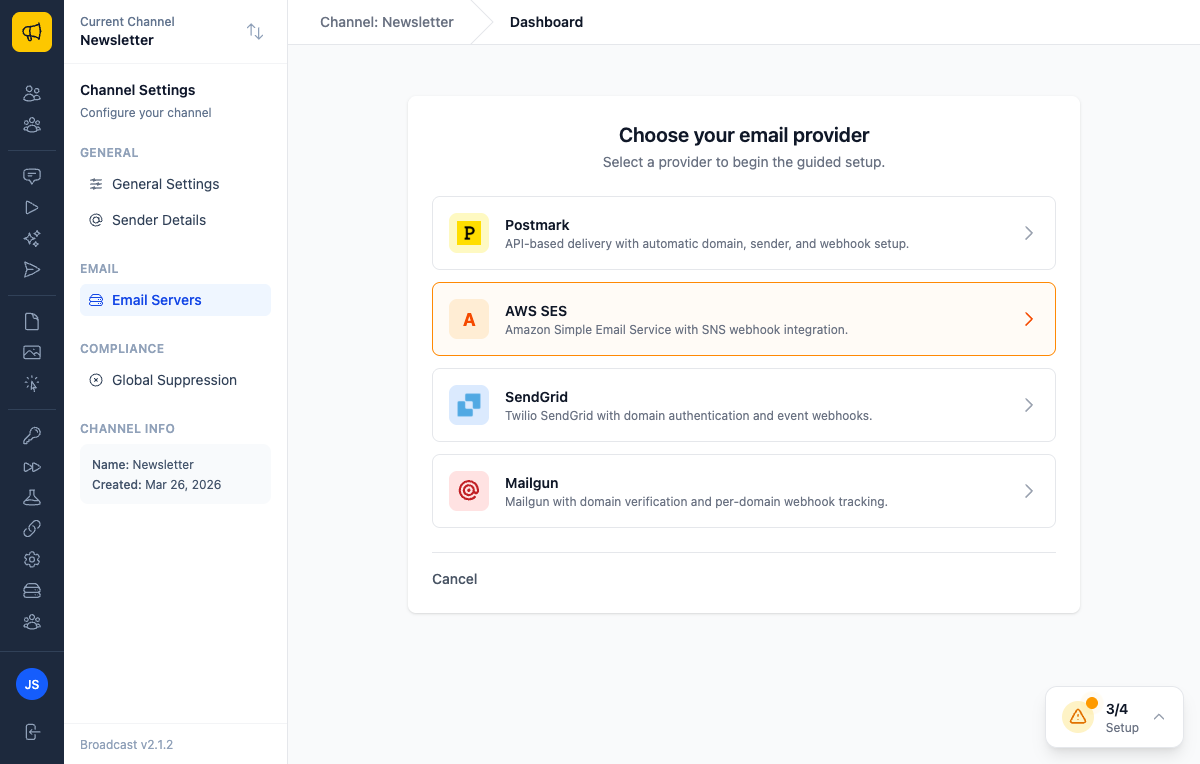
Guided Setup is available for Postmark, AWS SES, SendGrid, and Mailgun.
Quick Links
Full Documentation
- AWS SES Integration — Complete guide including automatic setup, suppression sync, and IAM configuration
- Postmark Integration — Setup guide with API delivery and message streams
Manual Setup
For providers without guided setup (Resend, SMTP.com, Inboxroad, or custom SMTP), use the Manual Setup option to configure SMTP settings directly. See the provider-specific instructions below.
Why Use ESP Webhooks?
While Broadcast can track opens and clicks natively, ESP webhooks provide additional benefits:
| Feature | Native Tracking | ESP Webhooks |
|---|---|---|
| Open tracking | ||
| Click tracking | ||
| Delivery confirmation | — | |
| Bounce detection | — | |
| Spam complaints | — | |
| Auto-suppression | — |
Recommendation
We recommend setting up ESP webhooks for all providers. This ensures accurate delivery tracking and automatic handling of bounces and complaints.
Finding Your Webhook URLs
Webhook URLs are shown on each email server's detail page. Navigate to Settings → Email Servers and click on a server to view its webhook URL.
Each provider has a unique webhook URL that you'll configure in your ESP's dashboard.
Mailgun Setup
Guided Setup (Recommended)
Use the Guided Setup wizard for the easiest experience:
- Navigate to Settings → Email Servers
- Click Add email server → Guided Setup
- Select Mailgun
- Enter your Mailgun API key and select your region (US or EU)
- Broadcast will automatically detect your verified domains, configure API delivery, and set up webhooks
Manual Webhook Setup
If you're using SMTP delivery instead, configure webhooks manually:
- Log into your Mailgun account
- Navigate to Sending → Webhooks
- For each event type, add your Broadcast webhook URL:
https://your-domain.com/wh/mailgun
- Select events to track:
- Delivered
- Opened
- Clicked
- Bounced (Permanent Failure)
- Complained
- Unsubscribed
Webhook Signing Key
For webhook verification:
- In Mailgun, find your Webhook Signing Key in the dashboard
- In Broadcast, go to your email server's detail page
- Enter the signing key
SendGrid Setup
Guided Setup (Recommended)
Use the Guided Setup wizard for the easiest experience:
- Navigate to Settings → Email Servers
- Click Add email server → Guided Setup
- Select SendGrid
- Enter your SendGrid API key
- Broadcast will automatically configure API delivery, domain authentication, and event webhooks
Manual Webhook Setup
If you're using SMTP delivery instead, configure webhooks manually:
- Log into your SendGrid account
- Navigate to Settings → Mail Settings → Event Webhook
- Enter your webhook URL with your channel ID:
https://your-domain.com/wh/sendgrid?broadcast_channel_id=YOUR_CHANNEL_ID
Select events to track:
- Processed
- Delivered
- Opened
- Clicked
- Bounced
- Spam Report
- Unsubscribe
Enable Signed Event Webhook Requests
Copy the Verification Key
In Broadcast, go to your email server's detail page
Enter the verification key
Resend Setup
- Log into your Resend dashboard
- Navigate to Webhooks
- Click Add Webhook
- Enter your Broadcast webhook URL:
https://your-domain.com/wh/resend
Select events:
- email.sent
- email.delivered
- email.bounced
- email.complained
- email.opened
- email.clicked
Save your webhook configuration
SMTP.com Setup
Contact SMTP.com support to configure webhook callbacks to your Broadcast endpoint:
https://your-domain.com/wh/smtp_com
Inboxroad Setup
Inboxroad provides API-based sync for bounces and complaints:
- In Broadcast, go to Settings → Email Servers
- Edit your Inboxroad email server
- Enable Inboxroad API Sync
- Enter your Inboxroad API Token
- Save the configuration
Manual Sync
To sync bounces and complaints from Inboxroad:
- Go to Settings → Email Servers
- Find your Inboxroad server
- Click Sync Now
Auto-Suppression
When Broadcast receives bounce or complaint webhooks, it automatically:
- Deactivates the subscriber — Prevents future email sends
- Adds to global suppression — Blocks the email across all channels
This protects your sender reputation and ensures compliance with anti-spam regulations.
Troubleshooting
Webhooks Not Received
- Verify the webhook URL is correct
- Check that your Broadcast instance is publicly accessible (HTTPS)
- Review your ESP's webhook logs for delivery failures
- Ensure firewalls aren't blocking incoming webhook requests
Events Not Appearing
- Check that the correct events are selected in your ESP
- Verify the email server has the correct vendor selected in Broadcast
- Look for errors on the email server's detail page
Authentication Errors
- Verify any signing keys or verification tokens are correct
- Check that credentials haven't expired
- Regenerate keys if needed and update both sides
Next Steps
- AWS SES Integration — Full setup guide with automatic configuration
- Postmark Integration — Complete Postmark integration guide
- Email Metrics — Understanding tracking and analytics
- Suppression Lists — Managing email suppressions