Domain Names
Domain names in Broadcast determine how links appear in your emails and where recipients are directed when they interact with email elements like unsubscribe links, tracking pixels, and lead capture forms. Understanding how to properly configure domains is essential for maintaining professional email communications and ensuring reliable delivery.
Overview
Broadcast uses domains in three primary ways:
- Installation Domain - The primary domain where your Broadcast application is hosted
- Channel Domain Override - Custom domains configured per channel for email links
- Email Link Generation - How Broadcast constructs URLs in your emails
All email-related links generated by Broadcast use these domains, including: - Unsubscribe links - Email tracking pixels - Lead capture form URLs - File asset permalinks - Email open tracking links
Installation Domain
Your installation domain is the primary domain where your Broadcast application is hosted. This is set during the initial server setup and serves as the default domain for all channels unless overridden.
For example, if your Broadcast installation is hosted at broadcast.yourcompany.com, this becomes your installation domain and will be used for all email links by default.
Key Characteristics of Installation Domain
- Set during initial Broadcast installation
- Used as the fallback domain for all channels
- Cannot be changed through the web interface (requires server reconfiguration)
- Appears in the Domain Override section as the default reference
Channel Domain Override
Each channel in Broadcast can have its own custom domain configured through the Domain Override feature. This allows you to use different domains for different business units, brands, or customer segments while using a single Broadcast installation.
How to Configure Channel Domain Override
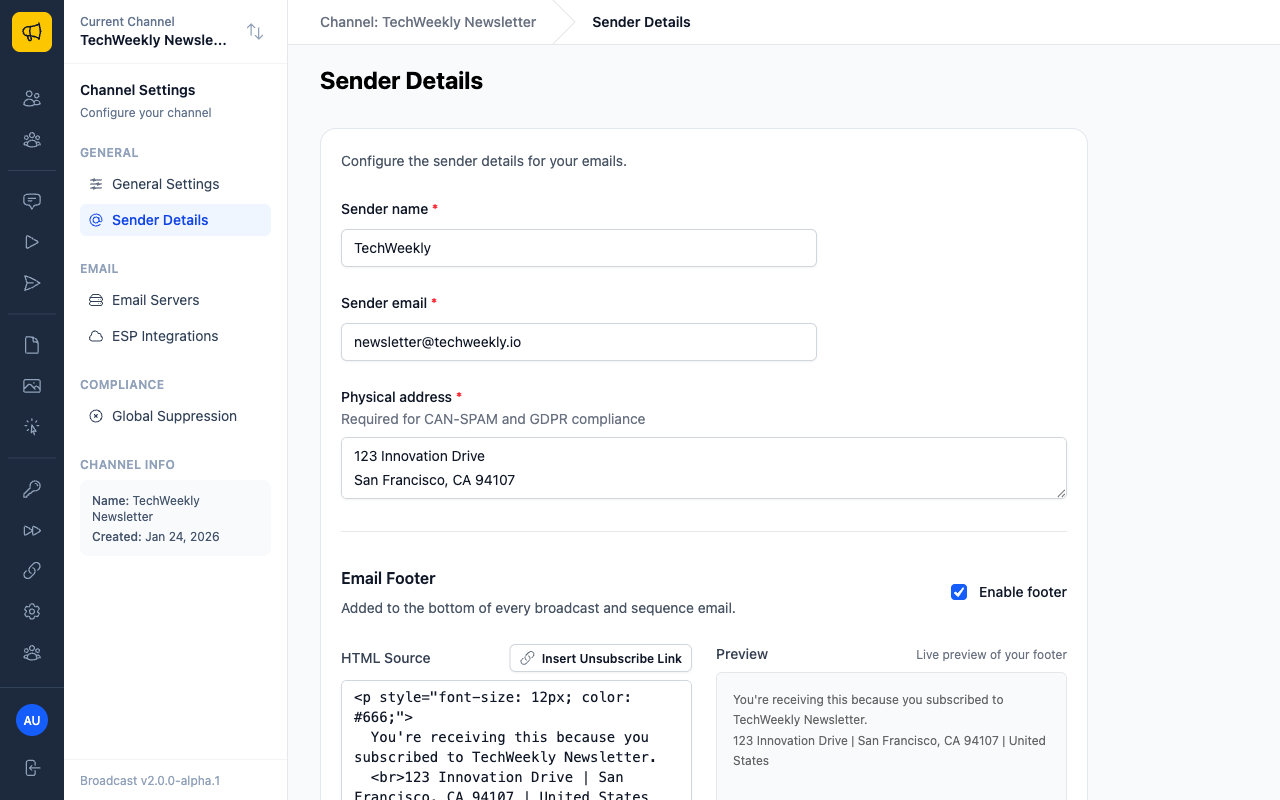
- Navigate to Channel Settings in the sidebar
- Click "Sender Details" from the Channel Settings submenu
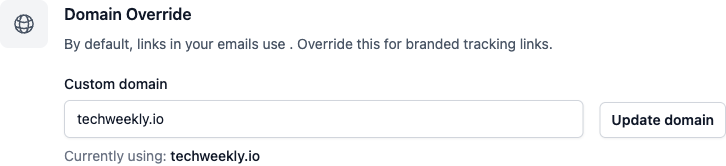
- Scroll down to the "Domain Override" section
- Enter your desired domain in the "Custom domain" field
- Click "Update domain" to save your changes
Domain Override Behavior
When Domain Override is Set:
- All email links use your custom domain instead of the installation domain
- Unsubscribe links point to yourcustomdomain.com/unsubscribe/...
- Tracking pixels load from yourcustomdomain.com/pixel/...
- Lead capture forms are hosted at yourcustomdomain.com/forms/...
When Domain Override is Empty: - All email links use your installation domain - Broadcast automatically falls back to the default domain - No additional DNS configuration required
Example Domain Override Usage
If your installation domain is broadcast.internal.company.com but you want customer-facing emails to use marketing.company.com:
- Set Domain Override to:
marketing.company.com - Configure DNS to point
marketing.company.comto your Broadcast server - All email links will now use
marketing.company.com
Using Multiple Domains
Broadcast supports multiple domains through channel-specific domain overrides. This powerful feature enables sophisticated domain strategies for different business needs.
Business Use Cases for Multiple Domains
Brand Separation
- Main brand: news.mainbrand.com
- Sub-brand: updates.subbrand.com
- Product line: alerts.productname.com
Geographic Segmentation
- US customers: mail.company.com
- European customers: mail.company.eu
- Asian customers: mail.company.asia
Customer Type Segmentation
- Enterprise: enterprise.company.com
- Small business: smb.company.com
- Individual: consumer.company.com
Content Type Segmentation
- Newsletters: newsletter.company.com
- Promotional: offers.company.com
- Transactional: mail.company.com
Multi-Domain Configuration Example
Here's how to set up multiple domains for different channels:
- Create separate channels for each domain need
- Configure domain overrides for each channel:
- Newsletter channel:
newsletter.company.com - Promotions channel:
offers.company.com - Transactional channel:
mail.company.com
- Newsletter channel:
- Set up DNS records pointing each domain to your Broadcast server
- Configure email servers per channel if needed
DNS Configuration Requirements
When using custom domains (domain overrides), you must configure DNS records to point to your Broadcast server.
Required DNS Records
A Record (Recommended)
marketing.company.com. A 192.168.1.100
CNAME Record (Alternative)
marketing.company.com. CNAME broadcast.internal.company.com.
DNS Configuration Steps
Determine your Broadcast server's IP address
- Check with your hosting provider or system administrator
- Use
digornslookupon your installation domain
Create DNS records in your domain registrar or DNS provider:
- Add an A record pointing your custom domain to the server IP
- Or add a CNAME record pointing to your installation domain
Test DNS propagation:
bash
dig marketing.company.com
nslookup marketing.company.com
Verify in Broadcast:
- Set the domain override in your channel settings
- Send a test email and verify links use the new domain
Domain and Email Deliverability
Proper domain configuration significantly impacts email deliverability. Here are best practices to follow:
Best Practices for Domain Setup
Use Subdomains for Email
- Avoid using your main website domain directly
- Use subdomains like mail.company.com or news.company.com
- Protects your main domain reputation
Consistent Domain Usage - Use the same domain for all email elements (tracking, unsubscribe, etc.) - Avoid mixing domains within a single email - Maintains recipient trust and deliverability
SSL/TLS Certificate Configuration - Ensure your custom domains have valid SSL certificates - Recipients will see secure (HTTPS) links in emails - Required for proper tracking pixel functionality
Domain Reputation Management - Monitor your domain's sender reputation - Use separate domains for different email types (marketing vs. transactional) - Consider dedicated domains for high-volume sending
DKIM and SPF Considerations
When using custom domains, ensure proper email authentication:
SPF Records
- Include your Broadcast server's IP in SPF records for each domain
- Example: v=spf1 ip4:192.168.1.100 include:_spf.google.com ~all
DKIM Signing - Configure DKIM signing in your email server settings - Use domain-specific DKIM keys for each custom domain - Publish DKIM public keys in DNS for each domain
Troubleshooting Domain Issues
Common Problems and Solutions
Links Not Using Custom Domain - Verify domain override is saved in channel settings - Check that the field is not empty or contains typos - Ensure you've clicked "Update" after making changes
Domain Not Resolving
- Check DNS records with dig or nslookup
- Allow time for DNS propagation (up to 24 hours)
- Verify A record points to correct server IP
SSL Certificate Errors - Ensure SSL certificate covers your custom domain - Check certificate validity and expiration - Configure web server to serve certificate for custom domain
Tracking Not Working - Verify custom domain has valid SSL certificate - Check that domain resolves to your Broadcast server - Test tracking pixel URLs manually in browser
Testing Domain Configuration
Test DNS Resolution ```bash
Check if domain resolves to your server
dig yourcustomdomain.com
Verify SSL certificate
curl -I https://yourcustomdomain.com ```
Test Email Links 1. Send a test email to yourself 2. View email source and check link URLs 3. Click links to ensure they resolve correctly 4. Verify unsubscribe and tracking functionality
Test Lead Capture Forms 1. Create a test opt-in form 2. Verify form URL uses custom domain 3. Test form submission functionality 4. Check that submissions appear in subscriber list
Advanced Domain Strategies
Load Balancing with Multiple Domains
For high-volume senders, consider rotating domains:
- Create multiple domain overrides for the same channel type
- Configure DNS for all domains pointing to your server
- Rotate usage manually or through custom automation
- Monitor reputation for each domain independently
White-Label Domain Setup
For agencies or multi-tenant scenarios:
- Create dedicated channels for each client
- Configure unique domain overrides (e.g.,
mail.clientdomain.com) - Set up client-specific DNS records
- Configure branded sender details matching the domain
- Implement domain-specific email servers if needed
Compliance and Regional Domains
For international compliance (GDPR, CAN-SPAM):
- Use country-specific domains (.com, .eu, .co.uk)
- Configure region-specific channels with appropriate domains
- Ensure compliance messaging matches domain jurisdiction
- Implement proper data handling per regional requirements
Security Considerations
Domain Security Best Practices
Protect Domain Control - Use strong passwords for domain registrar accounts - Enable two-factor authentication on DNS management - Regularly audit DNS records for unauthorized changes
Monitor Domain Usage - Set up monitoring for unexpected traffic patterns - Watch for DNS changes or domain hijacking attempts - Monitor SSL certificate expiration dates
Access Control - Limit who can modify domain override settings - Use strong authentication for Broadcast admin access - Regularly review channel configurations and domain settings
With proper domain configuration, your Broadcast installation can serve multiple brands, regions, or customer segments while maintaining professional email communications and strong deliverability. Take time to plan your domain strategy based on your business needs and email volume requirements.